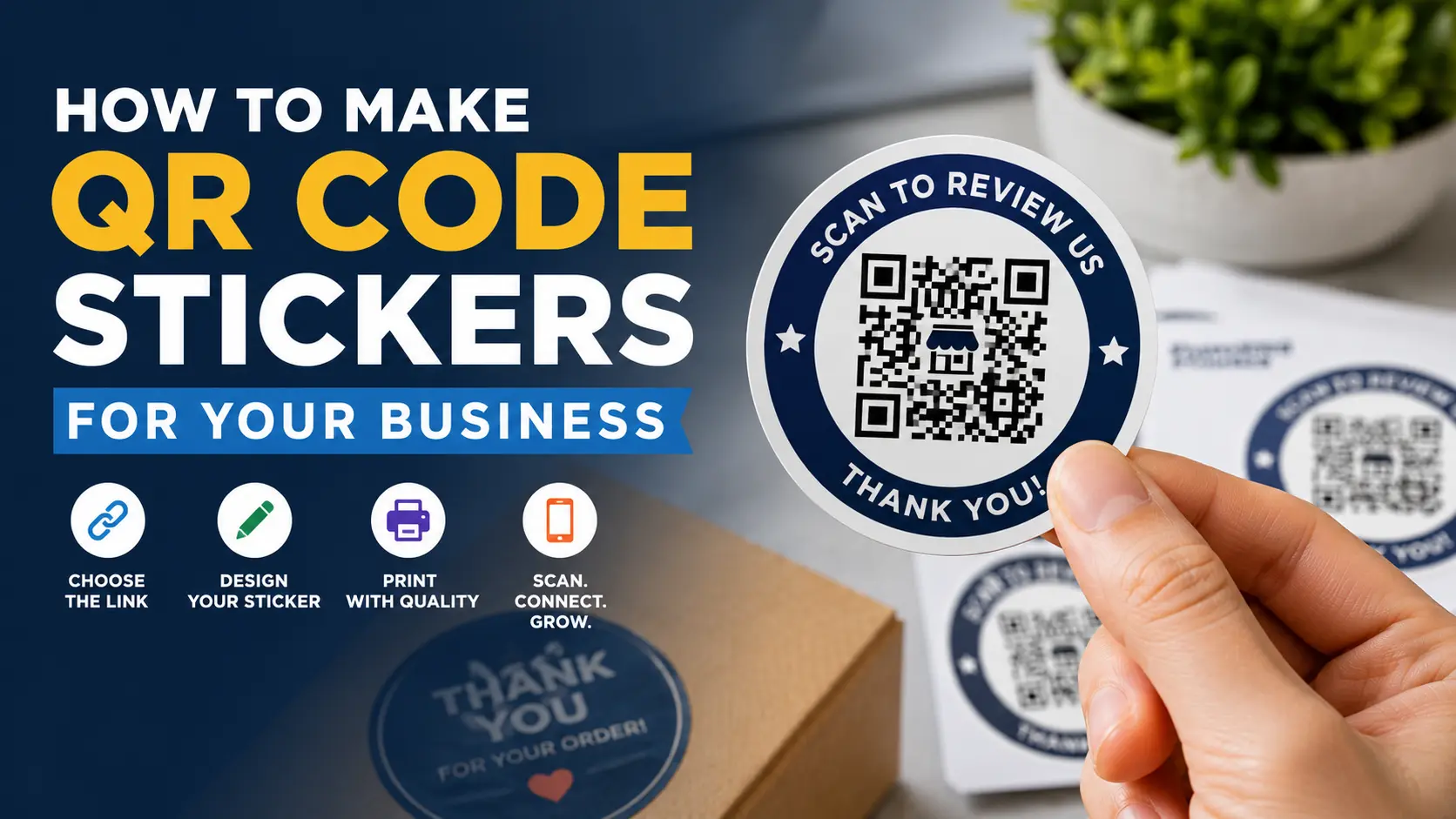
How To Make QR Code Stickers For Your Business
TLDR
QR code stickers for your business work best when they send customers to one clear action: leave a review, view a menu, reorder a product, claim an offer, or learn more.
Use a dynamic QR code if the destination may change. Keep the QR code large enough to scan, leave white space around it, use strong contrast, and test the printed size before ordering a large batch.
For most business uses, durable vinyl stickers are a good fit for handouts, windows, counters, packaging inserts, and equipment. Roll labels are usually better for repeated product packaging.
How To Make QR Code Stickers For Your Business
A QR code sticker only works if someone knows why they should scan it. That sounds obvious, but it is the part many businesses skip. A plain square code on a random surface creates friction. A QR code with a clear reason, a clean design, and a useful destination can turn packaging, counters, doors, menus, windows, and mailers into simple digital entry points.
That is the real value of QR code stickers for your business. They connect a physical moment to an online action. A customer gets their order, scans a sticker, and leaves a review. A shopper scans a jar label and sees ingredients or usage tips. A guest scans a table sticker and opens the menu. The sticker does not need to do everything. It just needs to make the next step easy.
Here is how to make QR code stickers that scan well, look professional, and actually help your business.
Start With One Clear Goal
Before you make the QR code, decide what the sticker is supposed to do.
Good QR code stickers usually point to one of these actions:
- Leave a Google review
- Open a menu
- Join an email list
- Claim a discount
- Reorder a product
- Watch setup instructions
- View care instructions
- Open a booking page
- Download an app
- Visit a product landing page
Try not to send people to a generic homepage unless the homepage is truly the best next step. A QR code scan is a small commitment. The customer is giving you a few seconds of attention, so the landing page should match the promise on the sticker.
For example, “Scan for 10% off your next order” should go straight to the offer. “Scan for care instructions” should go straight to the instructions. “Scan to review us” should go straight to the review page.
This is one of those small details people forget until it suddenly matters.
Choose A Static Or Dynamic QR Code
There are two main types of QR codes: static and dynamic.
A static QR code has the destination built into the code. Once you print it, you cannot change where it goes. Static codes are fine for permanent destinations, like a main website, a contact card, or a simple evergreen page.
A dynamic QR code uses a redirect link. That means you can often change the final destination later without reprinting the sticker. Many dynamic QR code tools also include scan tracking, which can help you see how often people use the code.
For business stickers, dynamic is usually the safer choice when the sticker will be printed in volume. It helps protect you from broken links, changed campaigns, seasonal offers, and landing pages that get replaced later.
Use a static QR code when:
- The link will not change
- You do not need tracking
- You want the simplest setup
- You are printing a small quantity
Use a dynamic QR code when:
- You are printing hundreds or thousands of stickers
- The offer or destination may change
- You want scan analytics
- You are using the sticker for a campaign
- The sticker will stay in use for months
The tradeoff is that dynamic QR codes often depend on the QR platform staying active. So choose a tool you trust, and make sure you understand whether the code expires or requires a paid plan.
Create The QR Code
Once the goal is clear, use a QR code generator to create the code. Most businesses should keep the encoded destination simple. A short, clean URL usually creates a less dense QR pattern, which can make scanning easier.
A basic process looks like this:
- Pick the destination page.
- Use a QR code generator to create the code.
- Choose static or dynamic.
- Download the QR code as a high-resolution file.
- Add the QR code to your sticker artwork.
- Test the code from the final design.
- Order your printed stickers.
If your QR code generator offers SVG, PDF, or EPS files, use one of those for the cleanest print quality. PNG can work too, but avoid tiny, low-resolution QR images. A blurry QR code is not a design problem. It is a function problem.
Design The Sticker Around The Scan
The QR code should be the easiest thing to scan, not the most crowded part of the design.
Keep the code high contrast. Black on white is the safest option. Dark blue on white can work. Dark green on white can work. Pale yellow on white is asking for trouble. Low contrast may look soft and branded, but scanners do not care about your brand palette as much as they care about clear edges.
Leave a quiet zone around the QR code. The quiet zone is the blank margin around the code that helps a phone camera recognize where the QR code begins and ends. Do not place text, borders, icons, patterns, or illustrations too close to the code.
A good QR code sticker design usually has:
- A clear headline or call to action
- A large, high-contrast QR code
- Enough white space around the code
- A short instruction, like “Scan to reorder”
- A logo or brand mark if there is room
- A simple shape that fits the use case
The sticker does not need to be boring. But the code should stay clean. Put the personality in the border, wording, color palette, or illustration. Keep the QR code itself easy to scan.
Pick The Right Sticker Size
For close-range scanning, a QR code should usually be at least 0.8 inches by 0.8 inches. That is the code itself, not the entire sticker. In practice, most business QR code stickers should be larger than that so there is room for the quiet zone, text, and branding.
Here are practical sticker sizes:
| Use Case | Suggested Sticker Size | Notes |
|---|---|---|
| Product packaging | 1.5″ to 2″ | Good for jars, bags, boxes, and inserts |
| Review stickers | 2″ to 3″ | Better for counters, doors, and receipts |
| Table menu stickers | 2″ to 4″ | Larger is easier for guests to scan |
| Window stickers | 3″ to 5″ | Useful when people scan from farther away |
| Equipment labels | 1.5″ to 3″ | Use durable material and simple text |
For small stickers, do not try to include too much. A 1.5-inch sticker can fit a QR code and a very short phrase. It probably cannot fit a logo, headline, paragraph, border, icon, and QR code without making the whole thing feel cramped.
If the sticker will be scanned from farther away, make it larger. A code on a storefront window needs more size than a code on a product insert.
Write A Clear Call To Action
A QR code with no context feels like homework. Tell people what they get when they scan.
Good call-to-action examples:
- Scan To Leave A Review
- Scan For The Menu
- Scan To Reorder
- Scan For Care Instructions
- Scan For Setup Help
- Scan For 10% Off
- Scan To Book Your Next Visit
- Scan To Join Rewards
Keep it short. The sticker should answer two questions fast: “What is this?” and “Why should I scan it?”
For customer review stickers, be careful with incentives. Asking for honest reviews is fine. Offering discounts, free items, or rewards in exchange for reviews can violate platform rules. A safer phrase is “Scan to share your experience” or “Scan to leave an honest review.”
Choose The Right Sticker Format
QR code stickers can be individual stickers or roll labels. The right format depends on how you plan to use them.
Individual stickers are good for:
- Handouts
- Event swag
- Counter stickers
- Window stickers
- Laptop or equipment stickers
- Packaging inserts
- Small business review stickers
Roll labels are good for:
- Product packaging
- Jars and bottles
- Boxes and bags
- High-volume application
- Repeated label placement
For durable individual QR code stickers, custom stickers are a good fit because they are made with durable vinyl, custom sizes and shapes, and a proofing step before printing.
For product packaging, custom labels may make more sense. Labels are easier to apply in batches and are built around packaging workflows.
Test Before You Print A Full Order
Do not skip testing. A QR code can scan perfectly on your screen and fail once it is printed too small, placed on a curved container, covered by glare, or surrounded by a busy design.
Before ordering a large batch, test the QR code in a realistic way:
- Print it at the final size.
- Scan it with more than one phone.
- Test it in normal lighting.
- Test it from the expected distance.
- Test the final artwork, not just the raw QR code.
- Check that the link opens the correct page.
- Make sure the landing page works well on mobile.
If the sticker will go on a bottle, jar, or curved surface, test the curve too. A large QR code wrapped too far around a small bottle may become harder to scan.
Best Places To Use QR Code Stickers
QR code stickers work best when they appear at the right moment. Place them where the customer already has a reason to act.
Strong placements include:
- Takeout bags
- Product boxes
- Candle jars
- Coffee cups
- Retail counters
- Front doors
- Tabletop signs
- Event badges
- Shipping inserts
- Repair equipment
- Rental gear
- Instruction cards
- Thank-you notes
A QR code on a thank-you card can ask for a review. A QR code on a product label can share ingredients or care instructions. A QR code on equipment can open a maintenance log or setup video. A QR code on a window can let people book or browse after hours.
The best placement depends on timing. Put the sticker where the customer is most likely to care about the action.
Common QR Code Sticker Mistakes
The most common mistake is making the QR code too small. The second most common mistake is surrounding it with too much design. Both make scanning harder.
Other mistakes to avoid:
- Sending scans to a desktop-only page
- Using a long static URL that creates a dense code
- Printing without testing the final size
- Using low contrast colors
- Placing the code on a highly curved surface
- Forgetting to add a call to action
- Letting a dynamic QR code subscription lapse
- Linking to a page that does not match the sticker promise
A QR code sticker should feel simple from the customer’s side. Scan, land, act. Anything else is extra friction.
Final Checklist Before Ordering
Before you send your sticker artwork to print, check these items:
- The QR code opens the correct destination.
- The destination page is mobile-friendly.
- The sticker has one clear call to action.
- The QR code is large enough for the scan distance.
- The code has a clean quiet zone.
- The design has strong contrast.
- The file is high resolution or vector.
- The sticker material matches the use case.
- The final printed size has been tested.
- The order format fits the workflow: individual stickers or roll labels.
That checklist is simple, but it prevents most QR sticker problems.
Conclusion
QR code stickers for your business are useful because they make the next step easier. They can help customers leave reviews, open menus, reorder products, join loyalty programs, read instructions, or visit a landing page without typing a URL.
The best QR code sticker is not the flashiest one. It is the one that scans quickly, explains the benefit clearly, and sends the customer to the right place. Use a clean design, choose the right size, test before printing, and pick a sticker format that matches the job.
If the sticker needs to be handed out, displayed, or used as a durable business sticker, vinyl is usually the right choice. If it needs to go on packaging at volume, roll labels are often better. Either way, the goal is the same: make the scan easy and make the result worth it.
FAQs
What Size Should A QR Code Sticker Be?
For close-range scanning, the QR code itself should usually be at least 0.8 inches by 0.8 inches. The full sticker should usually be larger so there is room for the quiet zone, call to action, and branding.
Are QR Code Stickers Good For Business Reviews?
Yes, QR code stickers can work well for business reviews when they link directly to a review page and ask for honest feedback. They are useful on counters, receipts, doors, thank-you cards, and packaging inserts.
Should I Use A Static Or Dynamic QR Code For Stickers?
Use a static QR code for a permanent link that will not change. Use a dynamic QR code if you may need to update the destination later or want scan tracking.
Can QR Code Stickers Be Waterproof?
Yes, QR code stickers can be waterproof when printed on durable vinyl with the right finish. This is useful for bottles, outdoor surfaces, windows, equipment, coolers, and packaging that may face moisture.
Can I Put A QR Code On A Product Label?
Yes, QR codes work well on product labels when they link to ingredients, instructions, reorder pages, care guides, authenticity checks, or product videos. Make sure the code stays large enough and does not wrap too far around a curved container.
What Should My QR Code Sticker Say?
Use a short, direct phrase like “Scan To Review,” “Scan For The Menu,” “Scan To Reorder,” or “Scan For Care Instructions.” The wording should make the scan feel useful.